Hardware Acceleration vs. Software Acceleration
Many people confuse “hardware acceleration” with “Hardware Layer” in Android, assuming that enabling hardware acceleration means enabling Hardware Layer. So before we talk about Hardware Layer, let’s first talk about hardware acceleration.
For more detailed articles about hardware acceleration, I recommend these three:
- Android Hardware Acceleration Principles and Implementation
- Understanding Android Hardware Acceleration for Beginners
- Official Documentation: Hardware Acceleration
Hardware acceleration should actually be called GPU acceleration. The main difference between software and hardware acceleration is whether the graphics rendering is handled by the GPU or CPU. If it’s handled by the GPU, it’s considered hardware-accelerated rendering; otherwise, it’s software rendering.
In current Android versions, hardware acceleration is enabled by default. If your app doesn’t explicitly declare otherwise, hardware acceleration is turned on by default.
The three articles above introduce hardware acceleration in detail at both the code level and principle level. Here, I’ll show you from the perspective of Systrace the differences between hardware-accelerated and software-accelerated app rendering.
Hardware-Accelerated App Performance
Since hardware acceleration is enabled by default, let’s take the most common scenario of scrolling the home screen as an example to see how a hardware-accelerated app appears in Systrace.
In hardware-accelerated mode, the app has both a main thread and a render thread. A frame’s rendering is executed cooperatively by the main thread and the render thread.
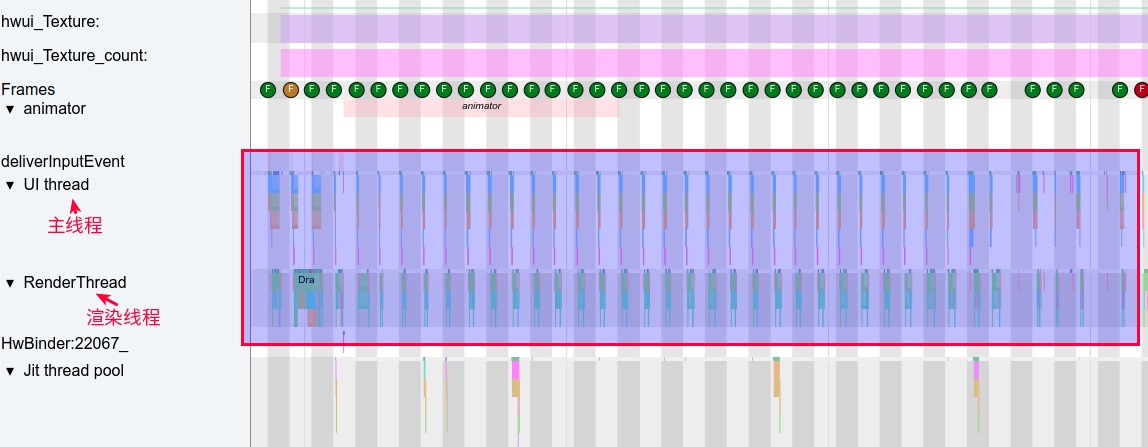
Let’s zoom in on the Systrace to see how the main thread and render thread work together for each frame, and when the GPU actually intervenes to implement “acceleration.”
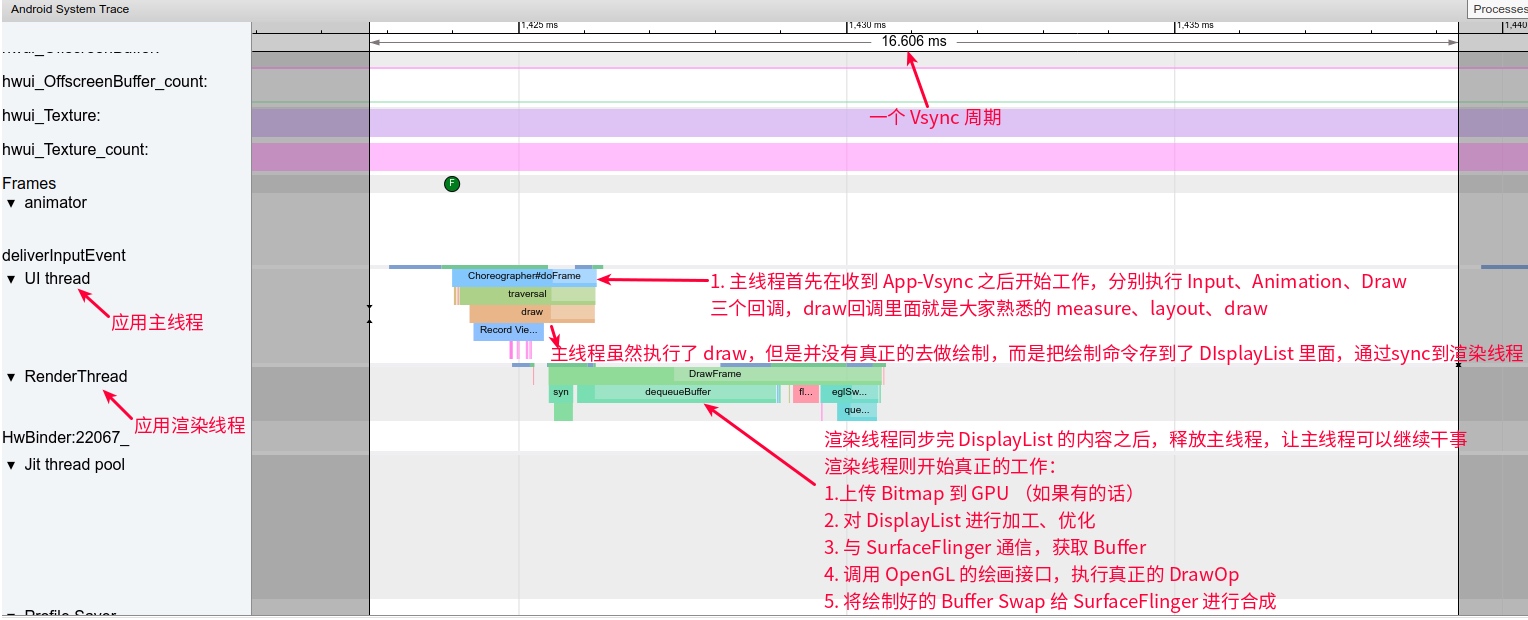
The GPU’s actual intervention occurs during certain operations in the RenderThread.
Software-Accelerated App Performance
Correspondingly, let’s find an app for software-accelerated demonstration: Yun Shan Fu (Cloud Flash Pay).
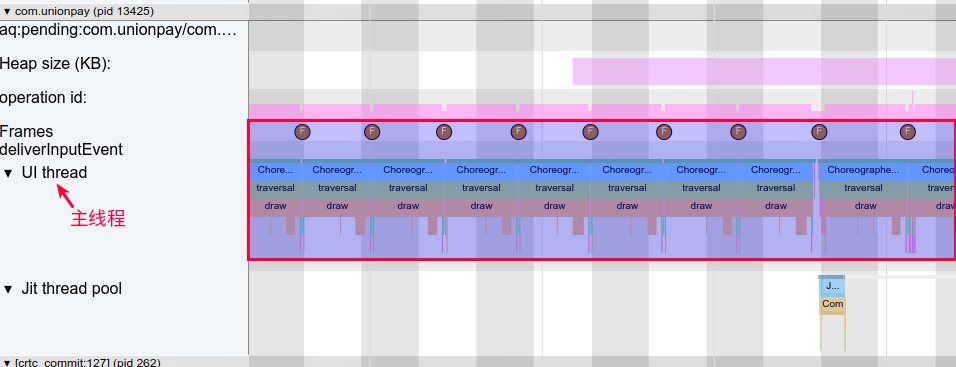
First, let’s look at a panoramic view. You can see that under software rendering, there’s only a main thread and no render thread. All rendering work is completed on the main thread. At the same time, you can see that under software rendering, the execution time of each frame is very long, exceeding one Vsync period, so when scrolling, it stutters frame by frame, which is very uncomfortable. Download Systrace
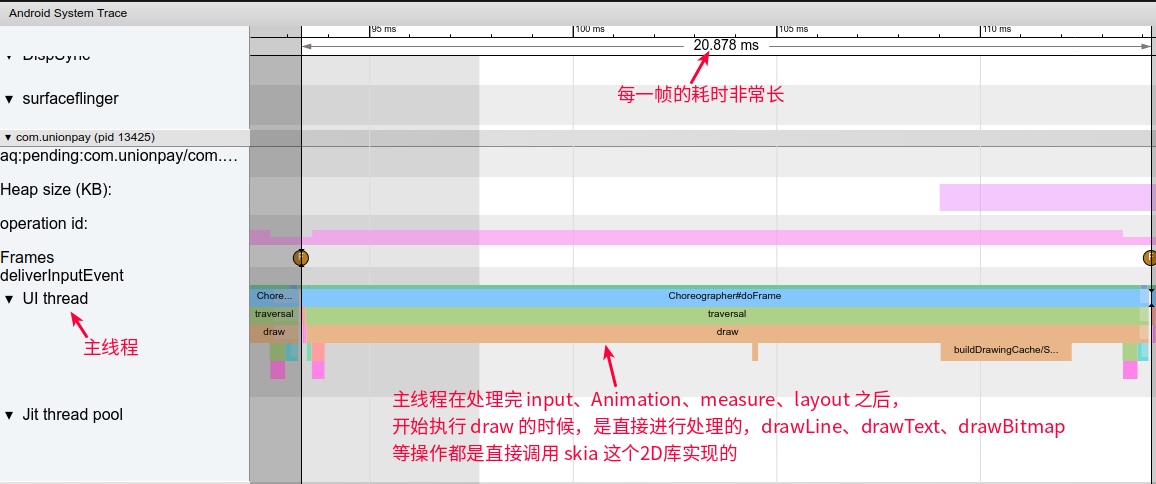
Let’s zoom in on the Systrace to see how the main thread works for each frame.
Summary
From the comparison above and by reading the three recommended articles, you should have a clear understanding of the difference between hardware rendering and software rendering. Let’s summarize here:
- In hardware rendering mode, the app has both a main thread and a render thread; in software rendering mode, the app has only a main thread and no render thread.
- In hardware rendering mode, the app’s final rendering is implemented with the help of the GPU; in software rendering mode, the app’s final rendering is implemented using the CPU (calling the Skia library).
- In hardware rendering mode, the app’s performance is superior to software rendering.
- Since some APIs are not supported by hardware rendering, they can only use software rendering. When doing app development, you should try to avoid using such APIs (you can check the support status directly in Android official documentation: https://developer.android.google.cn/guide/topics/graphics/hardware-accel)
Software Layer vs. Hardware Layer
After finishing with hardware rendering, let’s talk about Software Layer and Hardware Layer. These two concepts mainly refer to Views and are not directly related to whether the app is using hardware rendering or software rendering at this time (though there is a dependency relationship, which will be discussed later).
A View’s layerType has three states (the English text is from official documentation, let’s read the English first and then I’ll explain):
LAYER_TYPE_NONE: Indicates that the view does not have a layer.LAYER_TYPE_SOFTWARE: Indicates that the view has a software layer. A software layer is backed by a Bitmap and causes the view to be rendered using Android’s software rendering pipeline, even if hardware acceleration is enabled.LAYER_TYPE_HARDWARE: Indicates that the view has a hardware layer. A hardware layer is backed by a hardware-specific texture (generally Frame Buffer Objects or FBO on OpenGL hardware) and causes the view to be rendered using Android’s hardware rendering pipeline, but only if hardware acceleration is turned on for the view hierarchy. When hardware acceleration is turned off, hardware layers behave exactly asLAYER_TYPE_SOFTWARE.
LAYER_TYPE_NONE
By default, all Views have this layerType. In this case, the View doesn’t receive any special handling and goes through the normal rendering pipeline.
LAYER_TYPE_SOFTWARE
Software layerType indicates that this View has a software-implemented Layer. How is it implemented in software? Essentially, this View is converted into a Bitmap object based on certain conditions.
1 | android/view/View.java |
The role of Software layer:
When the application is not using hardware acceleration, a software layer is useful to apply a specific color filter and/or blending mode and/or alpha to a view and all its children.
When the application is using hardware acceleration, a software layer is useful to render drawing primitives not supported by the hardware-accelerated pipeline. It can also be used to cache a complex view tree into a texture and reduce the complexity of drawing operations. For instance, when animating a complex view tree with a translation, a software layer can be used to render the view tree only once.
Software layers should be avoided when the affected view tree updates often. Every update will require re-rendering the software layer, which can potentially be slow (particularly when hardware acceleration is turned on since the layer will have to be uploaded into a hardware texture after every update).
LAYER_TYPE_HARDWARE
Hardware layerType indicates that this View has a hardware-implemented Layer. From the first section, we know that “hardware” here refers to the GPU, so the hardware-implemented Layer is implemented through the GPU, typically Frame Buffer Objects (FBO) on OpenGL hardware (off-screen rendering buffer).
Note: Here, Hardware layerType depends on hardware acceleration. If hardware acceleration is enabled, then there will be FBO or frame buffer; if hardware acceleration is disabled, then even if you set a View’s LayerType to Hardware Layer, it will be processed as a Software Layer.
The role of Hardware layer:
A hardware layer is useful to apply a specific color filter and/or blending mode and/or alpha to a view and all its children.
A hardware layer can be used to cache a complex view tree into a texture and reduce the complexity of drawing operations. For instance, when animating a complex view tree with a translation, a hardware layer can be used to render the view tree only once (this is the most important point).
A hardware layer can also be used to increase rendering quality when rotation transformations are applied on a view. It can also be used to prevent potential clipping issues when applying 3D transforms on a view.
Setting Hardware Layer is helpful for the performance of alpha, translation, scale, and rotation property animations (similarly, setting Software Layer has the same effect, and the following examples will have detailed explanations). Specific usage is as follows:
Before the animation starts, set the LayerType to LAYER_TYPE_HARDWARE (the code is from the official example).
1 | view.setLayerType(View.LAYER_TYPE_HARDWARE, null); |
When the animation ends, reset it to LAYER_TYPE_NONE (the code is from the official example):
1 | view.setLayerType(View.LAYER_TYPE_HARDWARE, null); |
Due to the characteristics of Hardware Layer, during the property animation (alpha, translation, scale, rotation), only the View’s properties are updated, without destroying and rebuilding the FBO every frame, so its animation performance will be greatly improved. Of course, note that during the property animation (for example, in the AnimationUpdate callback), you should not do other things besides the above property updates, such as adding/removing child Views, modifying the View’s display content, etc., as this will make the FBO ineffective and instead make the performance worse.
Summary
From the description of Hardware Layer and Software Layer above, we can see that Software Layer is a supplement to Hardware Layer. If the app is in a situation where it cannot use Hardware Layer, then Software Layer will come into play. Implementations of APIs not supported by Hardware Layer also need to use Software Layer to achieve.
Both Software Layer and Hardware Layer can perform operations on Views, such as color filters, blending modes, etc.
Both Software Layer and Hardware Layer are helpful for the performance of alpha, translation, scale, rotation, and pivot property animations. This is also the most frequent optimization for Software Layer and Hardware Layer use (which is what we commonly say: when doing the above animations, set this View’s LayerType to
LAYER_TYPE_HARDWAREbefore the animation starts, and reset the layerType toLAYER_TYPE_NONEafter the animation ends. The reason for setting it back is that Hardware Layer uses Video Memory, and after setting it to NONE, this part of the memory used will be reclaimed).
Performance Problem Cases Caused by Incorrect LayerType Usage
Performance Problems Caused by Incorrect Software Layer Usage
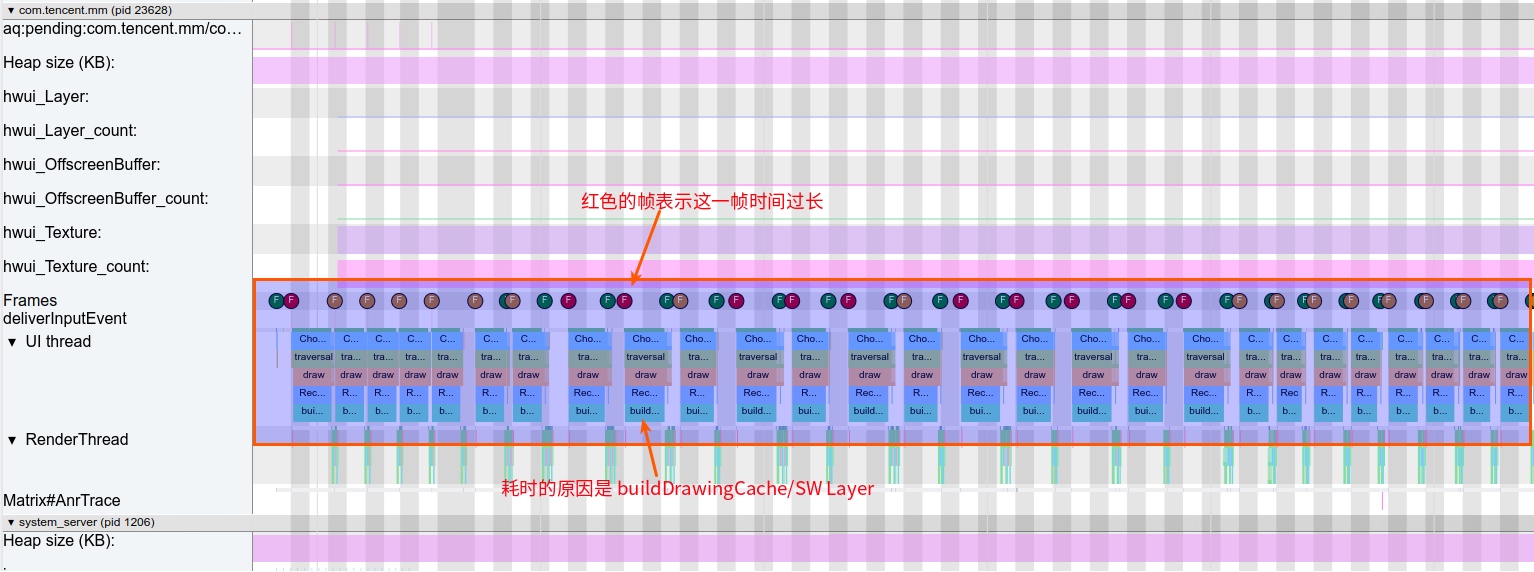
When looking at Trace, this situation often appears. We know that the Software Layer generation process essentially creates a Bitmap Cache. The generation of this Cache is very time-consuming. From the Trace below, you can also see that every frame takes longer than one Vsync period.
The reason why every frame in the Trace below calls buildDrawingCache/SW is that during every frame process, the View’s content was updated, causing the Cache to become invalid. So every frame triggers the destruction of the Cache and rebuilding of the Cache, causing the interface scrolling to stutter.
The Trace below is the situation of scrolling large images in WeChat Moments. Trace can be downloaded on GitHub
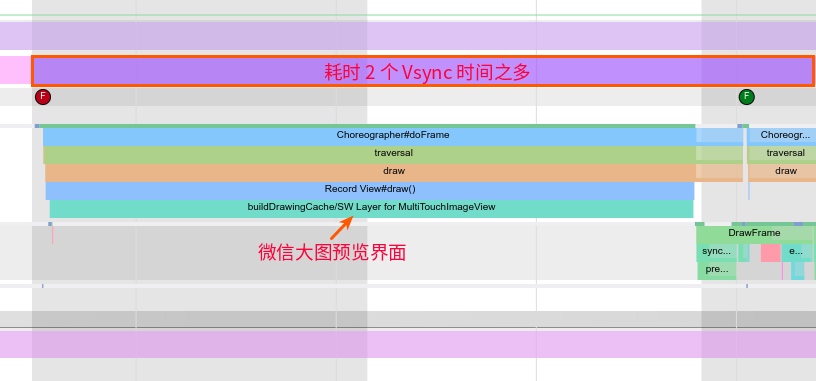
Let’s zoom in to see. Every frame is doing a buildDrawingCache operation, indicating that every frame’s cache has become invalid and is being destroyed and rebuilt. The performance is extremely poor, and the stuttering sensation during scrolling is very severe.
Code Flow
Let’s briefly look at the code flow of LAYER_TYPE_HARDWARE. For a detailed flow, you can look at the recommended articles above.
1 | buildLayer -> buildDrawingCache -> buildDrawingCacheImpl |
The implementation of buildDrawingCache can be seen where the corresponding Trace is printed:
1 | public void buildDrawingCache(boolean autoScale) { |
Performance Problems Caused by Incorrect Hardware Layer Usage
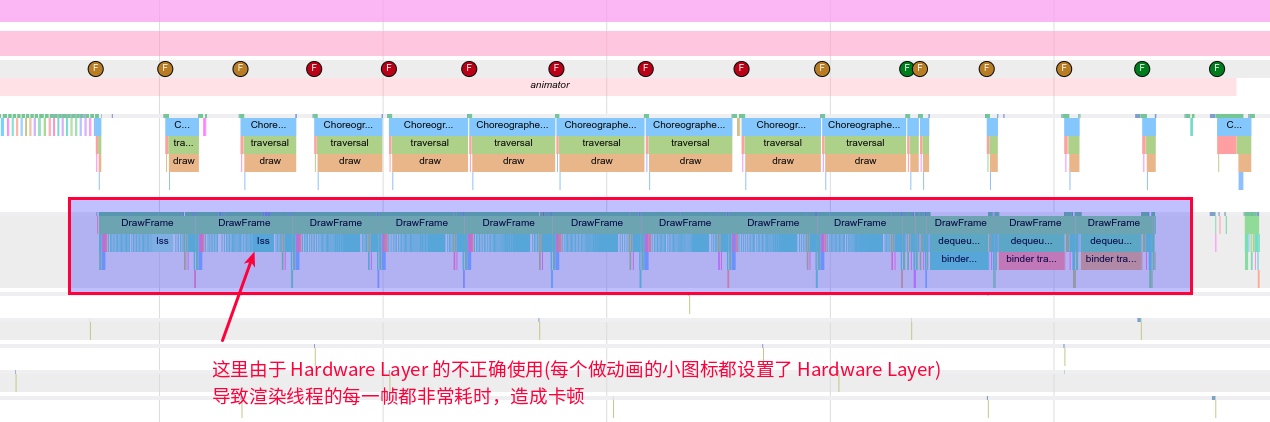
Incorrect use of Hardware Layer and incorrect use of Software Layer can cause the same performance problems. For example, in the following scenario (desktop opening a folder), due to implementation issues by the developer, multiple folder icons were all set to the Hardware LayerType, causing the RenderThread to be very time-consuming. Moreover, because the content in each frame was changing, every frame’s Hardware Layer became invalid, was destroyed and then rebuilt. So this resulted in the situation shown in the Systrace below.
Trace can be downloaded on GitHub
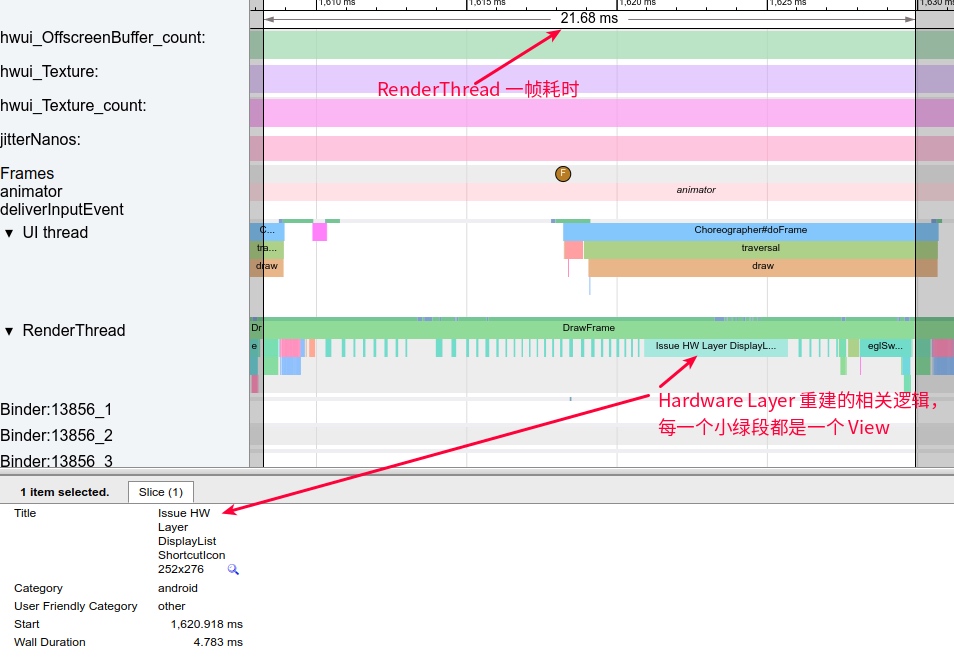
Let’s zoom in on one frame of the RenderThread to look at.
Debugging Tools
We can use the tool in Settings - Accessibility - Developer Options - Show hardware layers updates to track performance problems caused by hardware layer updates.
When a View renders a Hardware Layer, the entire interface will flash green. Under normal circumstances, it should flash green once when the animation starts (that is, when the Layer rendering is initialized), and there should be no green appearance during subsequent animations. If your View stays green continuously during the entire animation, this is a continuous cache invalidation problem.
You can also discover the same problem by looking at the Systrace. The two tools can be used together to discover animation performance problems early.
Summary
- Remember the usage scenarios for LayerType: View doing alpha, translation, scale, rotation property animations.
- When doing animations, if possible, try to use Hardware Layer more. Remember to set it to None after use. Only consider using Software Layer if there are APIs that the hardware layer doesn’t support.
- If you use
setAlpha(),AlphaAnimation, orObjectAnimatorto set the View’s transparency, it will go through an off-screen buffer by default. So if the View you’re operating on is relatively large, you can also set this View’s Type toLAYER_TYPE_HARDWARE(official suggestion). - In some cases, Hardware Layer might actually need to do a lot of work, not just rendering the view. Caching a layer takes time because this step is divided into two processes: first, the view is rendered into a layer on the GPU, and then, the GPU renders that layer to the window. If the View’s rendering is very simple (for example, a solid color), then setting up a Hardware Layer during initialization might add unnecessary overhead.
- For all caches, there’s a possibility of cache invalidation. When the animation is running, if some place calls
View.invalidate(), then the Layer will have to be rendered again from scratch. If it’s continuously invalidated, your Hardware Layer will actually perform worse than not adding any Layer at all (the example below can verify this), because Hardware Layer adds overhead when setting up the cache. If you continuously re-cache the Layer, it will cause a huge burden on performance (the more complex the View doing the animation, the heavier the burden).
Examples of LayerType’s Impact on Animation Performance
Example
Code
To illustrate the situation mentioned above, let’s use a small example to demonstrate the performance performance under various situations. The code is very simple (code project address: https://github.com/Gracker/Android_HardwareLayer_Example). The project’s Systrace folder contains all the examples involved in this article (these are good things, worth collecting).
- Two TextViews: one responsible for starting the animation, one responsible for doing the animation.
- Animation types include
TRANSLATION_X,ALPHA,TRANSLATION_Y,SCALE_X,SCALE_Y. - We will control
AnimatorListenerandAnimatorUpdateListenerto make the animation implementation different:- In
onAnimationStartandonAnimationEnd, mainly set whether to enableLAYER_TYPE_HARDWAREorLAYER_TYPE_SOFTWARE. - In
onAnimationUpdate, mainly demonstrate what impact it causes if the View’s content is changed during the animation process.
- In
1 | // Set up animation |
Statistics Tool: GFXInfo
To get accurate data, we use the data obtained from gfxinfo for comparison (adb shell dumpsys gfxinfo).
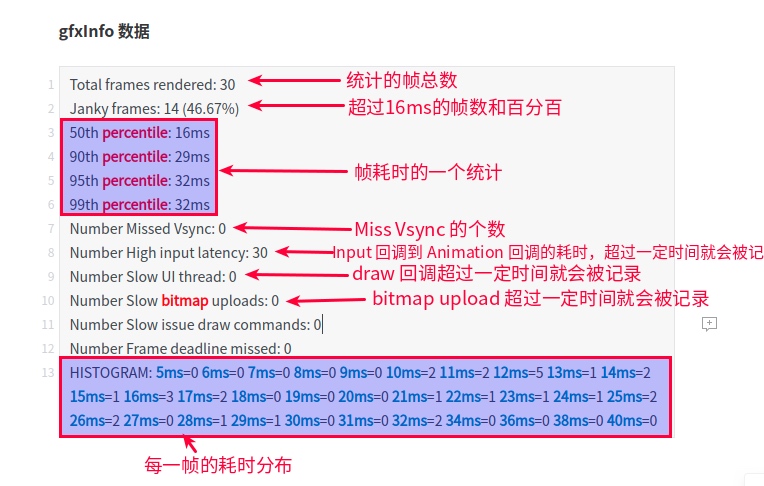
The gfxInfo records the duration of each frame. We focus on the following indicators:
- Janky Frames: Number of frames exceeding 16ms (exceeding 16ms doesn’t necessarily cause stuttering, but it increases the risk of stuttering situations occurring).
- Duration frame statistics: You can see the intervals of most frames, as well as the maximum duration.
Case 1: Normal Layer + No Dynamic View Content Update
Code
1 | AnimatorListener and AnimatorUpdateListener are not overridden, as follows, everything inside the functions is commented out. |
Systrace Phenomenon
You can see that there are some yellow frames, and the flush commands method in the render thread executes for a relatively long time. Download Systrace
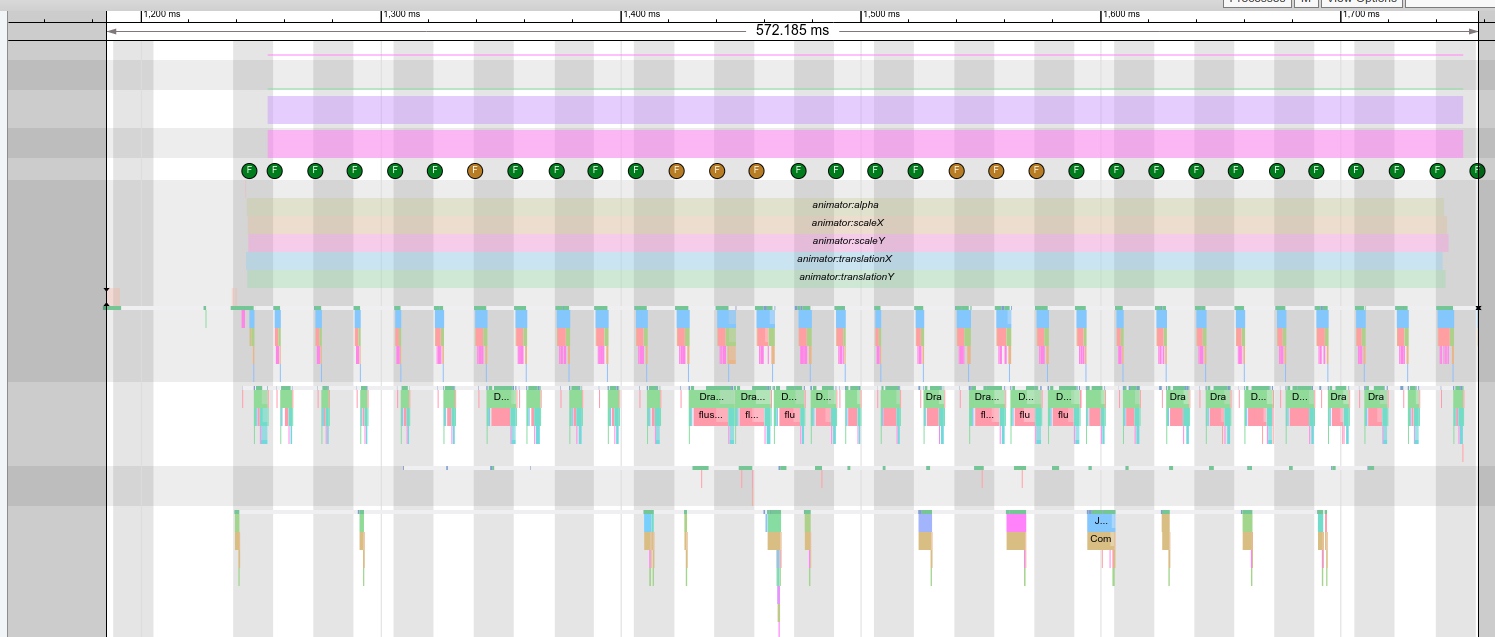
gfxInfo Data
You can see that the Janky Frames ratio is 46%, 99th percentile: 32ms, indicating that the performance is relatively poor. At the same time, Number High input latency = 30, indicating that the main thread’s load is relatively high.
1 | Total frames rendered: 30 |
Case 2: Software Layer + No Dynamic View Content Update
Code
1 | objectAnimator1.addListener(new Animator.AnimatorListener() { |
Systrace Phenomenon
The first frame executes buildDrawingCache/SW Layer for AppCompatTextView, and in the subsequent property animations, this method is not executed anymore. You can see that all frames during the animation are green, indicating that the performance is very good. Download Systrace
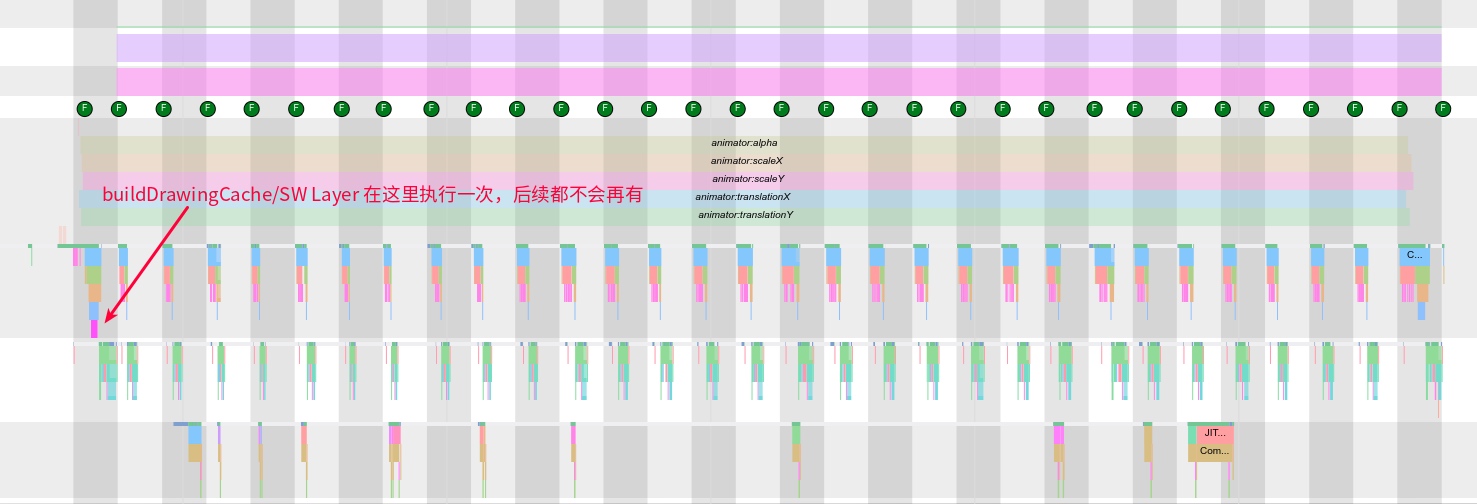
gfxInfo Data
You can see that the Janky Frames ratio is 3%, 99th percentile: 16ms, indicating that the performance is very good. At the same time, Number High input latency = 0, indicating that the main thread’s load is relatively low.
1 | Total frames rendered: 31 |
Case 3: Hardware Layer + No Dynamic View Content Update
Code
1 | objectAnimator1.addListener(new Animator.AnimatorListener() { |
Systrace Phenomenon
You can see that during the animation process, all frames are green, indicating that the performance is very good. Download Systrace
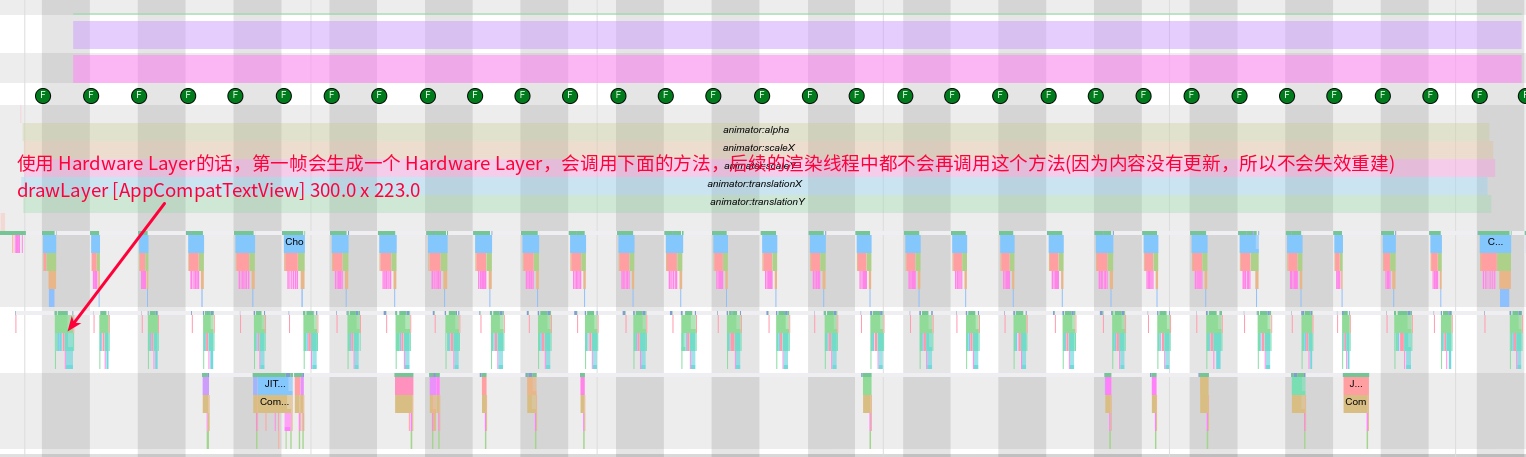
gfxInfo Data
You can see that the Janky Frames ratio is 0%, 99th percentile: 14ms, indicating that the performance is very good. At the same time, Number High input latency = 0, indicating that the main thread’s load is very low.
1 | Total frames rendered: 31 |
Case 4: Normal Layer + Dynamic View Content Update
Code
1 | objectAnimator1.addListener(new Animator.AnimatorListener() { |
Systrace Phenomenon
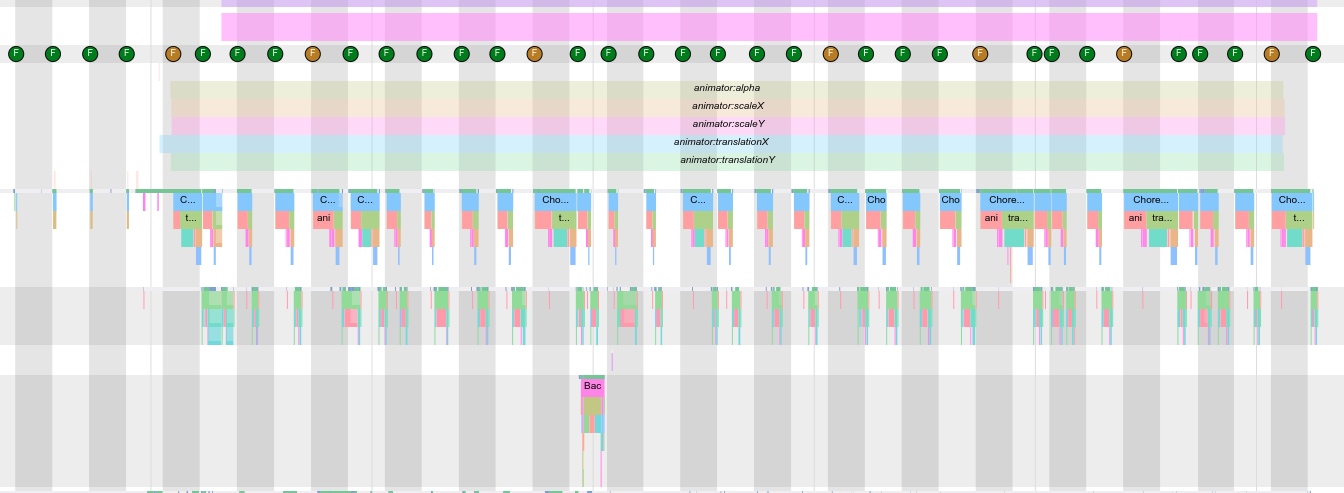
You can see that during the animation process, there are some yellow frames, and some frames’ Animation, measure, layout, draw are relatively time-consuming. Download Systrace
gfxInfo Data
You can see that the Janky Frames ratio is 38%, 99th percentile: 29ms, indicating that the performance is relatively poor. At the same time, Number High input latency = 31, indicating that the main thread’s load is relatively high.
1 | Total frames rendered: 31 |
Case 5: Software Layer + Dynamic View Content Update
Code
1 | objectAnimator1.addListener(new Animator.AnimatorListener() { |
Systrace Phenomenon
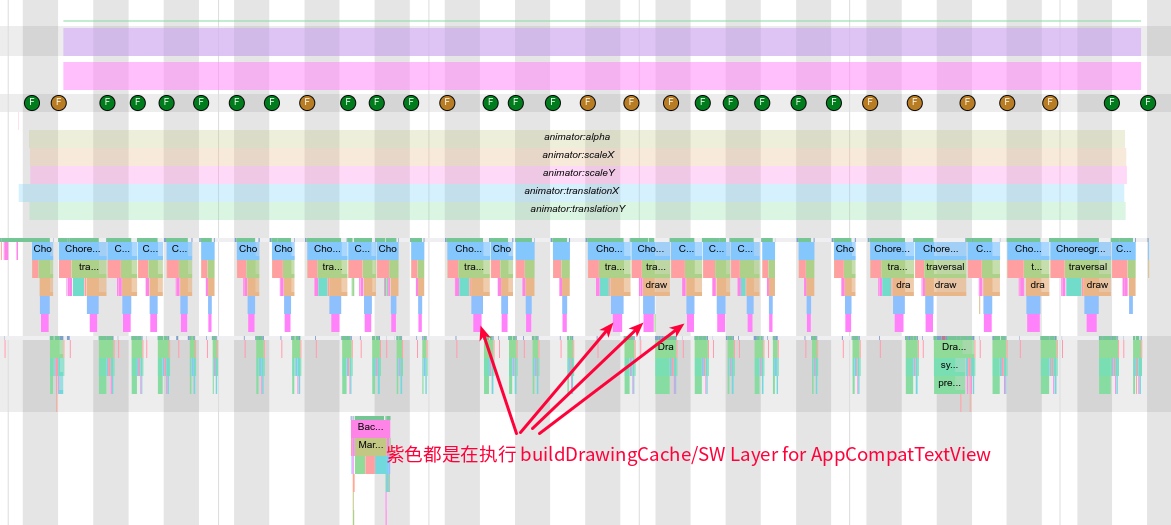
Since the content is updated every frame, the Bitmap generated by buildDrawingCache every frame is destroyed and rebuilt. At this point, the bottleneck is all in the main thread. Because buildDrawingCache is executed every frame, the execution times for Animation and Draw are both very long. Download Systrace
gfxInfo Data
You can see that the Janky Frames ratio is 41%, 99th percentile: 32ms, indicating that the performance is relatively poor. At the same time, Number High input latency = 18, indicating that the main thread’s load is relatively high.
1 | Total frames rendered: 29 |
Case 6: Hardware Layer + Dynamic View Content Update
Code
1 | objectAnimator1.addListener(new Animator.AnimatorListener() { |
Systrace Phenomenon
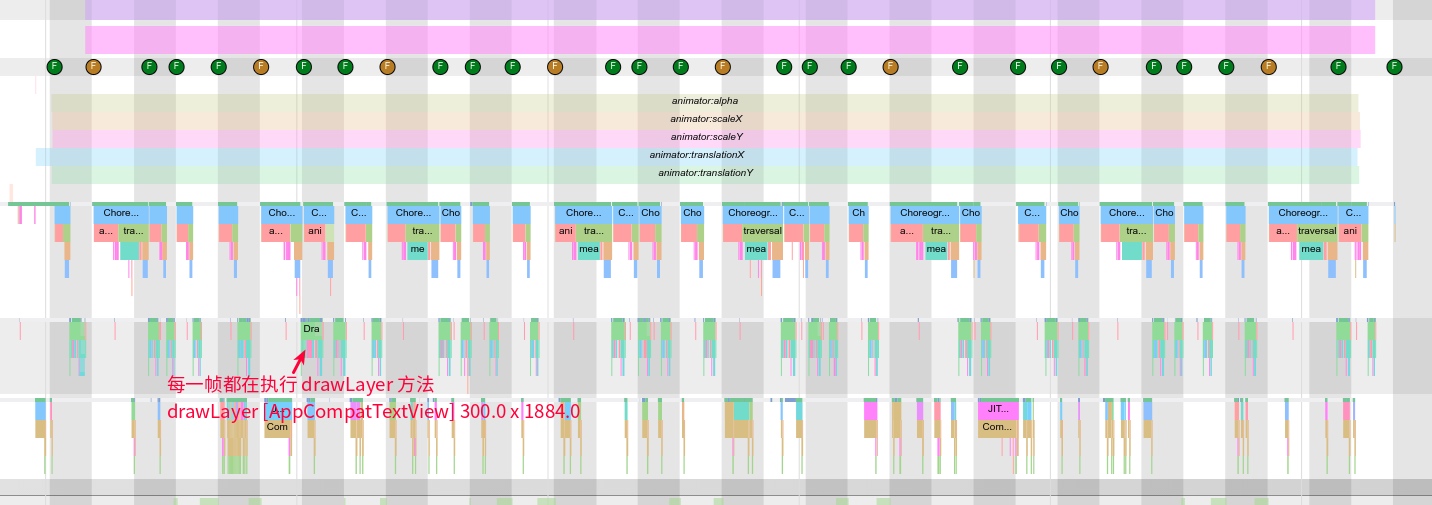
Similar to the Software Layer situation, since the content is updated every frame, the Buffer generated by drawLayer every frame is destroyed and rebuilt. At this point, the bottleneck is in both the main thread and the render thread. Because the content is updated every frame and the Buffer is destroyed and rebuilt, the execution times of both the main thread and the render thread are very long, and the performance is relatively poor. Download Systrace
gfxInfo Data
You can see that the Janky Frames ratio is 46%, 99th percentile: 32ms, indicating that the performance is relatively poor. At the same time, Number High input latency = 30, indicating that the main thread’s load is relatively high.
1 | Total frames rendered: 30 |
Summary
From the six cases above, you can see that for the same animation, under different LayerTypes, the performance performance varies greatly. This is just simple property animations; if you encounter more complex animations, the performance difference will be even greater.
Let’s do a simple summary of the above cases and the performance data they show:
- If you’re just doing animation without dynamically modifying the View’s content, then the performance is: Hardware Layer >= Software Layer > Normal Layer.
- If you’re doing animation while simultaneously dynamically modifying the View’s content, then the performance is: Normal Layer > Software Layer = Hardware Layer.
- Hardware Layer indeed provides a huge improvement for animation performance, but if you use it poorly, it’s even worse than not using it.
- If through Systrace you discover that every frame during your animation is doing
buildDrawingCache/SW(main thread) orbuildLayer(render thread), then please check your code’s logic. - In some cases, it’s due to system reasons, such as images being larger than Cache, invalidate logic problems. You can contact the phone manufacturer to modify it together.
Zhihu Article Address
Since blog message communication is inconvenient, for likes or communication, you can move to this article’s Zhihu page.
Zhihu - A Deep Dive into Hardware Layers in Android
About Me && Blog
Below is a personal introduction and related links. I look forward to communicating with colleagues in the same field. When three walk together, there must be my teacher!
- Blogger Personal Introduction: Inside are personal WeChat and WeChat group links.
- Blog Content Navigation: A navigation of personal blog content.
- Personally Organized and Collected Excellent Blog Articles - Android Performance Optimization Must Know: Everyone is welcome to recommend and self-recommend (private WeChat chat is fine).
- Android Performance Optimization Knowledge Planet: Welcome to join, thank you for your support~
“If you want to go fast, go alone. If you want to go far, go together.”