

Besides the CPU, many users consider RAM size when buying a phone. Different RAM configurations come with different prices—but how much RAM do you actually need? How does Android manage its memory? Average users are often confused: How much RAM does this app use? How much does the system use? How does RAM affect my experience? And how much RAM should my next phone have?
A common question on Zhihu is: “Does the Android system not release memory?”. It’s not that the user doesn’t know the system releases memory, but rather they want to understand the mechanics to optimize their experience. In this article, I’ll address these user concerns. More technical details will be covered in later articles.
1. Does the System Not Release Memory After Closing an App?
This is only half true. What do you mean by “closing” an app? There are several ways:
Pressing the Back Button
Whether the process is killed depends on the app’s implementation. For example, if you create an empty app and check its memory (pid 5708, usage 13910KB):
The process priority is Foreground.
If you press the Back button and check again: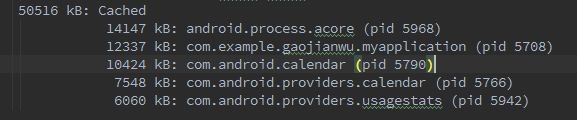
The process 5708 still exists. Its priority has shifted to Cache, and its usage dropped slightly to 12337KB. Most of the memory remains occupied.
Using the Task Manager
The result here depends on the OEM’s Task Manager implementation. Most Chinese manufacturers customize this to be quite aggressive—unless an app is on a whitelist, the Task Manager will kill the process immediately.
Opening the same test app and using the Task Manager (on a Meizu MX4 Pro):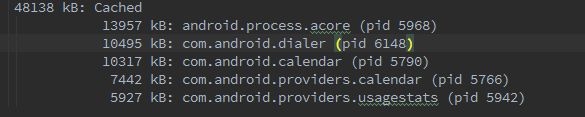
The entire process is wiped out.
Using ADB or Developer Tools
Running adb shell am force-stop <package_name> or using the “Stop” button in an IDE (like Android Studio) will immediately kill the process.
2. Does Memory Not Increase Much Even After Closing Background Tasks?
This is incorrect. When a process is killed, its memory—including Virtual Machine memory, Native memory, and graphics resources—is reclaimed by the system and added back to the pool of available RAM.
Example with the Zhihu App:
- Before opening: 1.8GB Free RAM.
- After opening: Free RAM decreases by the amount Zhihu uses.
- After killing via Task Manager: Free RAM increases back to nearly its original state.

3. Does a Process Keep Running Even After Being “Closed” In the Foreground?
This again depends on how you closed it:
- Back Button: The process stays in the background. Whether it is “running” depends on its behavior. Some apps lower their priority to
Cacheand do nothing until the system kills them for space. Others trigger backgroundServices(e.g., music players or navigation apps) and continue to run. - Home Button: The process stays in the background with most resources (Activities, Services) intact. Its behavior is similar to pressing Back.
- Task Manager / Force Stop: Unless the app has “Auto-start” capabilities (many Chinese apps attempt this, but most Chinese OEMs use “whitelists” to block unauthorized auto-starts), it will NOT run in the background.
Usage Tips:
- If you just need a short break and will return soon, use Home.
- If you are done with the app for now, use Back.
- If you want to ensure it’s not running or want to free up RAM, use the Task Manager (or the “Clear All” button).
Manufacturers block unauthorized auto-starts and “mutual wake-ups” (where one app starts another) to prevent background apps from hogging CPU, I/O, and Memory, which causes jank in the foreground app.
4. Do I Not Need to Close Apps Manually to Save Startup Time?
This is technically true if apps are “well-behaved” in the background. Unfortunately, many apps are not.
Android’s design philosophy is that users shouldn’t worry about memory. The system kills lower-priority apps when it needs space. When an app receives a “Low Memory” signal, it’s supposed to release its own unnecessary resources to stay alive. This avoids a fork from zygote the next time you open it, which is the difference between a “Cold Start” and a “Hot Start.”
However, reality is harsh. Many apps (especially in China) are not memory-sensitive and can easily hog 200MB-400MB. In low-memory situations, the system has no choice but to kill background apps. If you are reading a book, switch to WeChat to reply, take a photo to share, and check Weibo, you might find your e-book app was killed by the time you return.
This is why managing background processes—killing unimportant ones and blocking auto-starts—is crucial for a good user experience.
Startup Analogy:
- Cold Start: Get in car -> Turn key -> Wait for engine -> Shift gears -> Release handbrake -> Go.
- Hot Start: Get in car -> Shift gears -> Release handbrake -> Go.
Quick Q&A
- How does Android manage memory? (Covered in future articles).
- How much RAM does an app/system use? (Covered in future articles).
- How does RAM affect experience? Low RAM causes jank, slow responsiveness, and frequent app restarts.
- How to use Android properly? Buy flagship models, use the “Clear All” task button regularly, and disable unauthorized background running.
- What RAM size should I buy? 6GB is the minimum; 8GB or more is ideal.
About Me && Blog
(Links and introduction)