

Android Memory Optimization Series:
- Android Code Memory Optimization Suggestions - Android (Official)
- Android Code Memory Optimization Suggestions - Java (Official)
- Android Code Memory Optimization Suggestions - Android Resources
- Android Code Memory Optimization Suggestions - OnTrimMemory
This article focuses on common memory leak scenarios in Android application development. Having a baseline understanding of memory management before writing code leads to much more robust applications. This post starts with resource usage in Android and covers optimizations for Bitmaps, database queries, Nine-Patch assets, overdraw, and more.
Android Resource Optimization
1. Bitmap Optimization
Most memory issues in Android trace back to Bitmaps. If you inspect a heap dump with MAT (Memory Analyzer Tool), the largest memory consumers are almost always byte[] arrays representing Bitmaps. Google has a dedicated series on this: Displaying Bitmaps Efficiently. Before optimizing, ensure you are following these best practices.
A Bitmap usually stays in memory for two reasons:
- The developer didn’t explicitly release it after use.
- The Bitmap is still being referenced, preventing garbage collection.
1.1 Manually Releasing Bitmap Resources
Once you are certain a Bitmap is no longer needed, call recycle() to release its native memory. While keeping it might speed up future resumes, its large footprint might cause your app to be killed in the background, which is counterproductive.
1 | if(bitmap != null && !bitmap.isRecycled()){ |
From Bitmap.java: recycle() marks the bitmap as “dead,” clearing references to pixel data. While GC will eventually reclaim this, manual recycling is safer because GC is non-deterministic and can cause lag if it has to reclaim many large objects at once.
1.2 Releasing ImageView Images
If you set images via XML (src) or methods like setImageResource, you can use the following to manually clear the resource:
1 | private static void recycleImageViewBitMap(ImageView imageView) { |
1.3 Releasing ImageView Backgrounds
If your ImageView has a background:
1 | public static void recycleBackgroundBitMap(ImageView view) { |
1.4 Prefer Nine-Patch Over Standard PNGs
As screen resolutions increase, so does the memory cost of loading images. Avoid using large, static PNGs for backgrounds; use Nine-Patch (.9.webp) assets instead. These are small PNGs with defined stretchable areas, allowing them to scale without distortion and adapt to multiple screen sizes. Android Studio includes a built-in tool to convert PNGs to Nine-Patch assets.

1.5 Compress Large Images Before Loading
Often, the source image (e.g., from a camera) has a much higher resolution than the screen. Loading a full-res image into a small ImageView wastes memory and causes jank during scrolling.
Google recommends two key techniques:
- Decode the dimensions (
inJustDecodeBounds) before loading. - Load a scaled-down version (
inSampleSize) that matches your UI size.
Reference: Loading Large Bitmaps Efficiently.
2. Unclosed Database Cursors
Failing to close a Cursor after a query is a common error. While small result sets might not cause immediate issues, cumulative unclosed cursors will lead to leaks and instability over time.
Incorrect:
1 | Cursor cursor = getContentResolver().query(uri ...); |
Correct:
1 | Cursor cursor = null; |
3. Not Recycling convertView in Adapters
In BaseAdapter.getView(int position, View convertView, ViewGroup parent), the convertView parameter allows you to reuse view objects that have scrolled off-screen. If you instantiate a new View every time instead of checking if convertView is null, you waste resources and cause meaningful memory inflation.
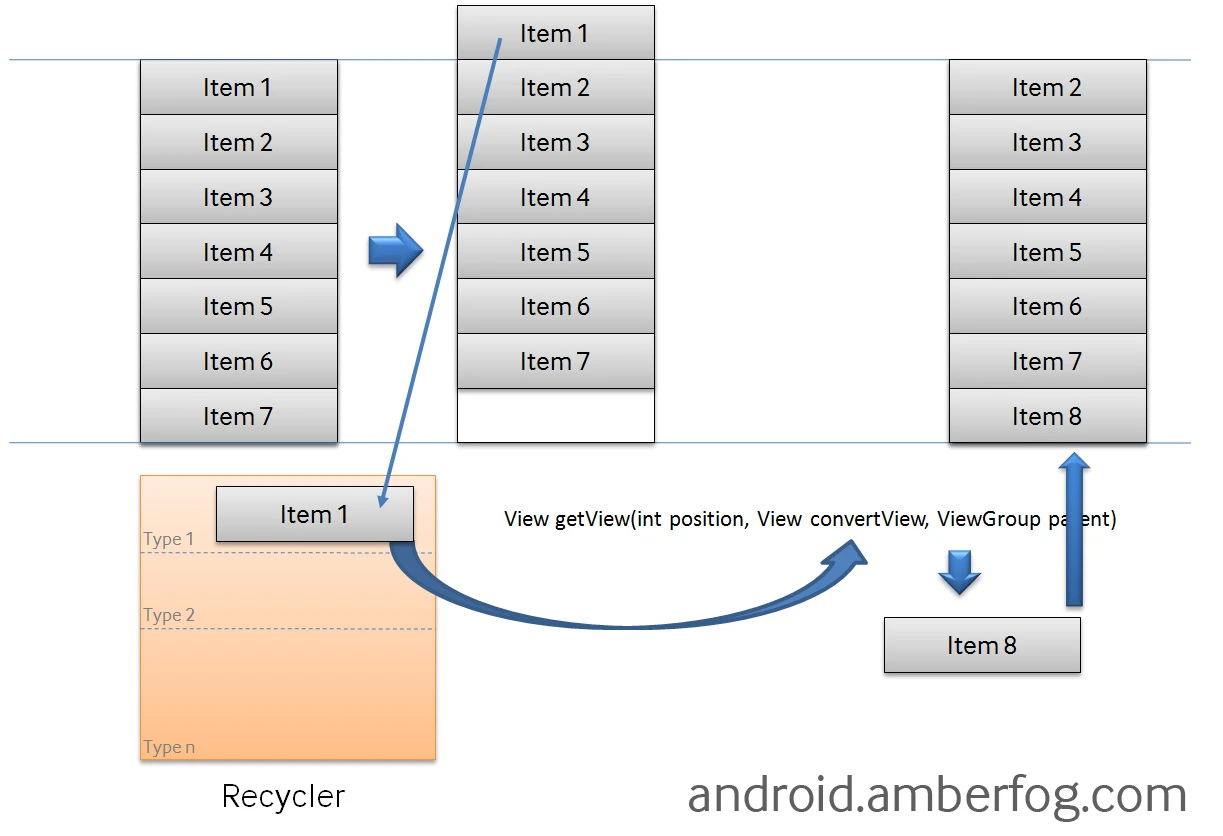
Incorrect:
1 | public View getView(int position, View convertView, ViewGroup parent) { |
Correct:
1 | public View getView(int position, View convertView, ViewGroup parent) { |
4. Releasing Object References
Objects are not collected as long as they are reachable from a GC Root.
Scenario A: Handlers and Runnables
If a MainActivity has a member variable obj used inside a Runnable posted to a Handler, obj will stay in memory as long as MainActivity exists, even if the thread is done. Explicitly nulling the reference helps:
1 | final Object o = obj; |
Scenario B: Listeners and Subscriptions
If a short-lived Activity (like a LockScreen) registers a listener (like PhoneStateListener) with a long-lived System Service (TelephonyManager), forgetting to unregister the listener in onDestroy will leak the entire Activity.
5. Releasing Resources in Lifecycle Callbacks
Most resource cleanup should happen in onPause(), onStop(), or onDestroy(). Check the official Activity lifecycle documentation to determine exactly when to release which resources (e.g., stopping animations, closing camera connections, or unregistering receivers).
6. Eliminating Overdraw
Overdraw happens when you paint a pixel multiple times in a single frame. For example, a TextView with a background paints the background pixel first, then the text pixel over it. Excessive overdraw strains the GPU’s memory bandwidth and impacts performance. Minimize overdraw by removing redundant backgrounds from parent layouts.
7. Using System Resources
Android provides many built-in strings, drawables, and layouts. Using @android:id/list or @android:color/white instead of duplicating them in your project reduces APK size and RAM usage.
8. Using Memory Profiling Tools
You can’t guarantee a perfect application on the first attempt. Make memory checks (using tools like Lint, MAT, or Memory Profiler) part of every development phase.
About Me && Blog
(Links and introduction)