It’s been a while since my last update. After joining a new company, things have been busy, but I’ve been spending a lot of time researching Android performance. I’ve realized there’s so much I still don’t know, so I’m starting from the application level and working my way down. This series will document my learnings on Android performance optimization.
First, we’ll discuss GPU Overdraw, which is often the most direct point of contact for developers. This topic is split into two parts: Part 1 covers the theory and optimization suggestions, and Part 2 will walk through a practical optimization example.
What is Overdraw?
GPU Overdraw refers to the system drawing more than one layer on a single pixel during a frame. For example, if a TextView has a background color, the pixels displaying the text are drawn twice: once for the background and once for the characters. Overdraw inevitably impacts performance because memory bandwidth is finite. When overdraw exceeds the available bandwidth, the frame rate drops. Bandwidth limits vary significantly across different devices.
Causes of Overdraw
- Too many overlapping Views.
- Complex, deeply nested view hierarchies.
- Long inflation times due to complex XML.
Impact of Poor XML Layouts
- Inflation Overhead: Layout files are XML. Inflation involves parsing XML, creating objects, and linking them. More tags, attributes, and deeper trees increase the time spent in parsing, recursion, and function calls.
- Lifecycle Bottlenecks: Inflation is just the beginning. After
requestLayout, the system must executemeasure,layout, anddraw. The time for each step is dictated by layout quality. Poorly designed layouts increase the cost of every frame, leading to noticeable delays in rendering.
Basic Tools for Detecting Overdraw
Android provides three primary tools: Hierarchy Viewer, Tracer for OpenGL, and Show GPU Overdraw. The first two are found in the SDK monitor tools, while the last is a built-in Developer Option.
- Testing: Enable “Debug GPU Overdraw” in Developer Options. (On some devices like Meizu, look under Accessibility -> Developer Tools -> Hardware Accelerated Rendering -> Debug GPU Overdraw -> Show Overdraw Areas. Note: Meizu phones require enabling developer mode first by dialing
*#*#6961#*#*in the phone app). This feature is available only on Android 4.2 and above. - Color Coding: Overdraw is visualized from best to worst: Blue -> Green -> Light Red -> Red.
- Blue: 1x overdraw (optimal).
- Green: 2x overdraw.
- Light Red: 3x overdraw.
- Red: 4x+ overdraw (critical issue).
- Acceptance Criteria:
- Aim to keep overdraw at 2x or lower.
- Avoid 4x overdraw entirely.
- Avoid 3x overdraw (Light Red) areas larger than 1/4 of the screen.
Optimization Tools
1. Lint
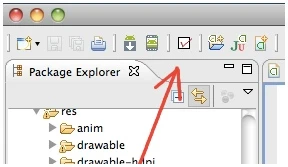
- Eclipse: Click to run, suggestions appear in the bottom window.
- Android Studio: Built-in Lint tool highlights suboptimal code or layouts in yellow.
- Lint provides excellent suggestions for both UI and code risks. A good rule of thumb is to clear as many Lint warnings as possible.
- It can also be run via the command line. For details, refer to: tools.android.com
2. Common Lint Suggestions (from official documentation)
- Use compound drawables: A
LinearLayoutcontaining anImageViewand aTextViewcan often be replaced by a singleTextViewwith adrawableStart(compound drawable). - Merge root frame: If a
FrameLayoutis the root and provides no background/padding, replace it with a<merge>tag to flatten the hierarchy. - Remove useless leaves: A layout with no children or background can often be removed (since it’s invisible) for a flatter and more efficient layout hierarchy.
- Remove useless parents: A layout with children that has no siblings, is not a
ScrollViewor root layout, and has no background can be removed, moving its children directly into the parent for a flatter hierarchy. - Flatten Deep Layouts: Avoid deep nesting. Use
RelativeLayoutorGridLayoutto improve performance. The default maximum depth warning threshold is configurable.
3. Hierarchy Viewer (HV)
This tool is part of ADT (or monitor - newer SDK versions recommend using monitor instead of standalone HV). It’s invaluable for analyzing view hierarchies and identifying layout issues. By default, HV works only on non-encrypted devices (engineering devices, tablets, or emulators). To use it on any phone, you need to add ViewServer to your app (an open-source library). Connect your device, open Hierarchy Viewer (located in tools/ directory, run hierarchyviewer command), select the target process, and click “Load View Hierarchy” to display the current interface’s layout tree. Each node shows three traffic lights representing the performance of Measure, Layout, and Draw operations.
Layout Optimization Principles
By following these best practices, you can create high-performance, reusable UIs:
- Prefer
RelativeLayoutandLinearLayoutoverAbsoluteLayout.- For layouts with similar hierarchy depth,
LinearLayoutis slightly more efficient thanRelativeLayout. - For complex layouts, use
RelativeLayoutto avoid the nesting thatLinearLayoutwould require.
- For layouts with similar hierarchy depth,
- Extract reusable components using the
<include>tag. - Use
<ViewStub>for layouts not needed at startup. - Dynamic inflation performs better than
setVisibility(). However,ViewStubis the best choice. - Use the
<merge>tag to reduce hierarchy depth. - Remove redundant backgrounds: Use Hierarchy Viewer to export layers as PSD files and inspect in Photoshop (see this video tutorial).
- For multi-layered layouts, only the top layer should have a solid background color.
- For selectors used as backgrounds (e.g., in ListView items), set the “normal” state to
@android:color/transparent.
- Avoid
layout_weightin nestedLinearLayouts, as it requires children to be measured twice. This is especially critical inListViewandGridViewwhere items are repeatedly created. - Keep layouts broad and shallow instead of narrow and deep (visible in Hierarchy Viewer’s Tree view).
Source Code References
For those interested in the underlying implementation:
Overdraw rendering logic is located at: /frameworks/base/libs/hwui/OpenGLRenderer.cpp
1 | void OpenGLRenderer::renderOverdraw() { |
For QA teams, there’s also an OverDraw numerical metric. The source code for this is located in Framework/base/core/java/android/view/HardwareRender.java (note: this display was removed in Android 5.0):
1 | private void debugOverdraw(View.AttachInfo attachInfo, Rect dirty, |
Reference Articles
- Optimization Process
- Decompiling and Adding GPU Display
- Optimizing Layouts
- Reusing Layouts
- Loading Layouts On-Demand
- Smooth Scrolling
- Hierarchy Viewer Documentation
- Lint Tips
About Me && Blog
Here’s my personal introduction and related links. I look forward to exchanging ideas with fellow developers - “When three walk together, there must be one who can be my teacher!”
- About the Author : Includes my WeChat and WeChat group links.
- Blog Content Navigation : A navigation guide to my blog content.
- Personally Curated Excellent Blog Articles - Must-Know Android Performance Optimization : Welcome to recommend articles (contact me via WeChat).
- Android Performance Optimization Knowledge Planet : Welcome to join, thank you for your support!
One person can walk faster, but a group can walk farther.